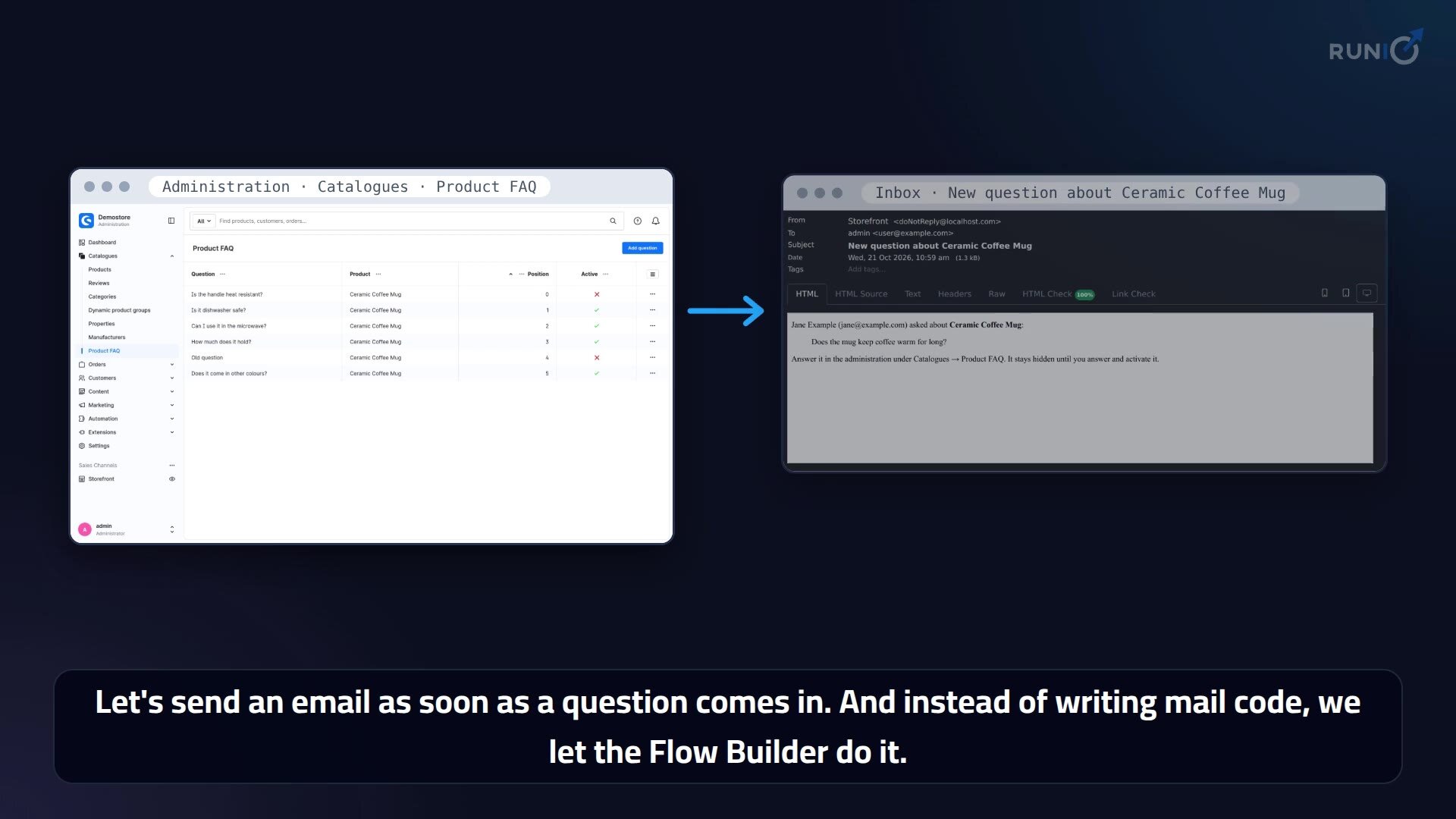
This is the written version of the first episode in my Shopware plugin series. Watch the video on YouTube if you prefer that, and the full code is in the GitHub repo.
The problem
Say your shop runs fine, but you want one small thing it doesn't have: a bar at the top of every page with a message like "Free shipping on orders over €50".
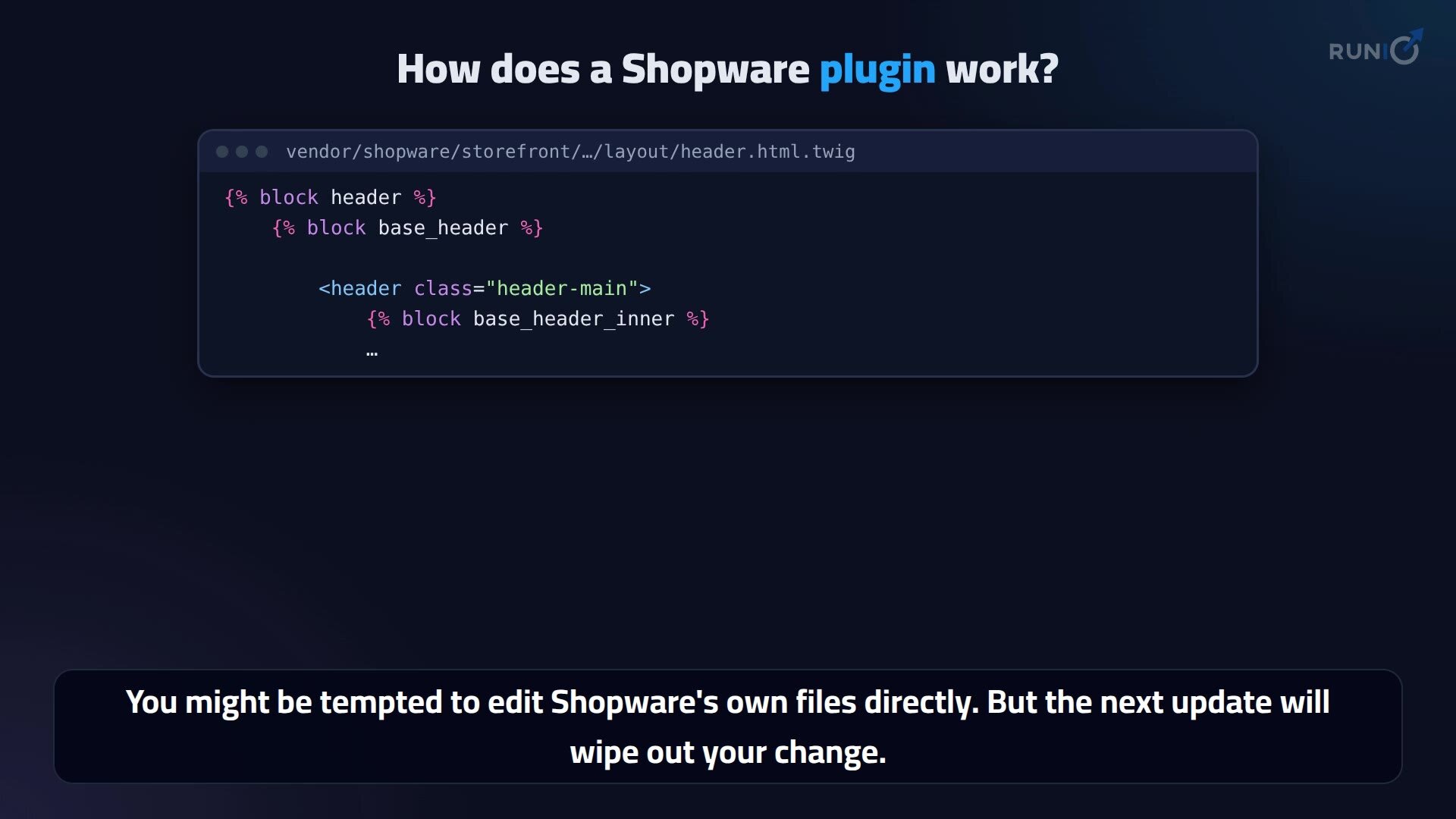
The quick fix is to open Shopware's own template files and add the bar there. It works until the next update, which overwrites your change without asking. A plugin avoids that. It sits on top of the shop, adds what you need, and can be removed again without anything in the core being touched.
The skeleton
One command in the shop folder generates the plugin:
bin/console plugin:create DemoTopBar
The important file is composer.json. Think of it as the plugin's ID card. It says what the plugin is called, which Shopware version it works with, and where its main class lives:
{
    "name": "demo-top-bar/demo-top-bar",
    "type": "shopware-platform-plugin",
    "require": {
        "shopware/core": "~6.7.0",
        "shopware/storefront": "~6.7.0"
    },
    "extra": {
        "shopware-plugin-class": "Demo\\TopBar\\DemoTopBar"
    }
}
The main class itself can be empty for now. It extends Shopware's Plugin class, and that is enough for Shopware to treat it as a plugin.
Install and activate
bin/console plugin:refresh tells Shopware to look for new plugins. It finds ours, but it isn't installed or active yet. One more command does both:
bin/console plugin:install --activate DemoTopBar
After that the plugin shows up in the admin with its on/off switch.
These steps are the plugin lifecycle: install, activate, deactivate, update and uninstall. Each one has a method on the plugin class where you can run your own code. Uninstall is the one to be careful with. Shopware asks the user whether the plugin's data should be kept, and your plugin has to respect that answer.
Hooking in with an event subscriber
So how does a plugin get into the page at all? Through events. At almost every step Shopware announces what it is doing, and anything that listens can add to it.
Our listener waits for the storefront render event, reads the bar text from the plugin settings and passes it to the template:
public function onRender(StorefrontRenderEvent $event): void
{
    // since 6.7 the header is rendered in its own request (ESI)
    if ($event->getRequest()->attributes->get('_route') !== 'frontend.header') {
        return;
    }

    $salesChannelId = $event->getSalesChannelContext()->getSalesChannelId();
    $text = $this->config->getString('DemoTopBar.config.text', $salesChannelId);

    $event->setParameter('topBarText', $text);
}
The route check matters. Since 6.7 the header is rendered in a separate request, so without it you would add the text to every render, not only the header.
The subscriber also has to be registered in services.php with the kernel.event_subscriber tag. Forget the tag and nothing calls your class. There's no error either, the bar just never shows up, which is the kind of bug that eats an afternoon.
Showing the bar
Storefront templates are Twig. To change one, you copy its path into the plugin's views folder. You don't copy the whole file though. You extend it, open the block you want and call parent() so the original still renders:
{% sw_extends '@Storefront/storefront/layout/header.html.twig' %}

{% block header %}
    {% if topBarText %}
        <div class="demo-top-bar">{{ topBarText }}</div>
    {% endif %}
    {{ parent() }}
{% endblock %}
Clear the cache, reload, and the bar is there.
Settings without admin code
The last piece is config.xml. You describe a text field in it, and Shopware builds a settings form in the admin from that file. I didn't write a single line of admin code for it.
<input-field type="text">
    <name>text</name>
    <label>Text</label>
    <defaultValue>Free shipping on orders over €50</defaultValue>
</input-field>
Now the shop owner can change the text and save, and the bar updates right away. No developer and no deployment needed.
What we ended up with
A command for the skeleton, composer.json to describe the plugin, the lifecycle, a subscriber to hook into events, a template that extends instead of replacing, and a settings page in the admin. And not one character of Shopware's core changed, so the shop can be updated without losing any of this.
In the next episode the plugin gets its own data: product questions and answers, stored with Shopware's Data Abstraction Layer.
Author Amer Malik Mohammed
Full-Stack Developer with 2+ years of experience in object-oriented PHP development (Symfony), JavaScript and MySQL. Specialized in e-commerce solutions (Shopware 5/6), REST API development and process automation in agile teams.
Contact author